📖 How to Use
A complete guide to navigating the Philippine Supreme Court Jurisprudence Search Engine
📋 Table of Contents
Searching for Cases
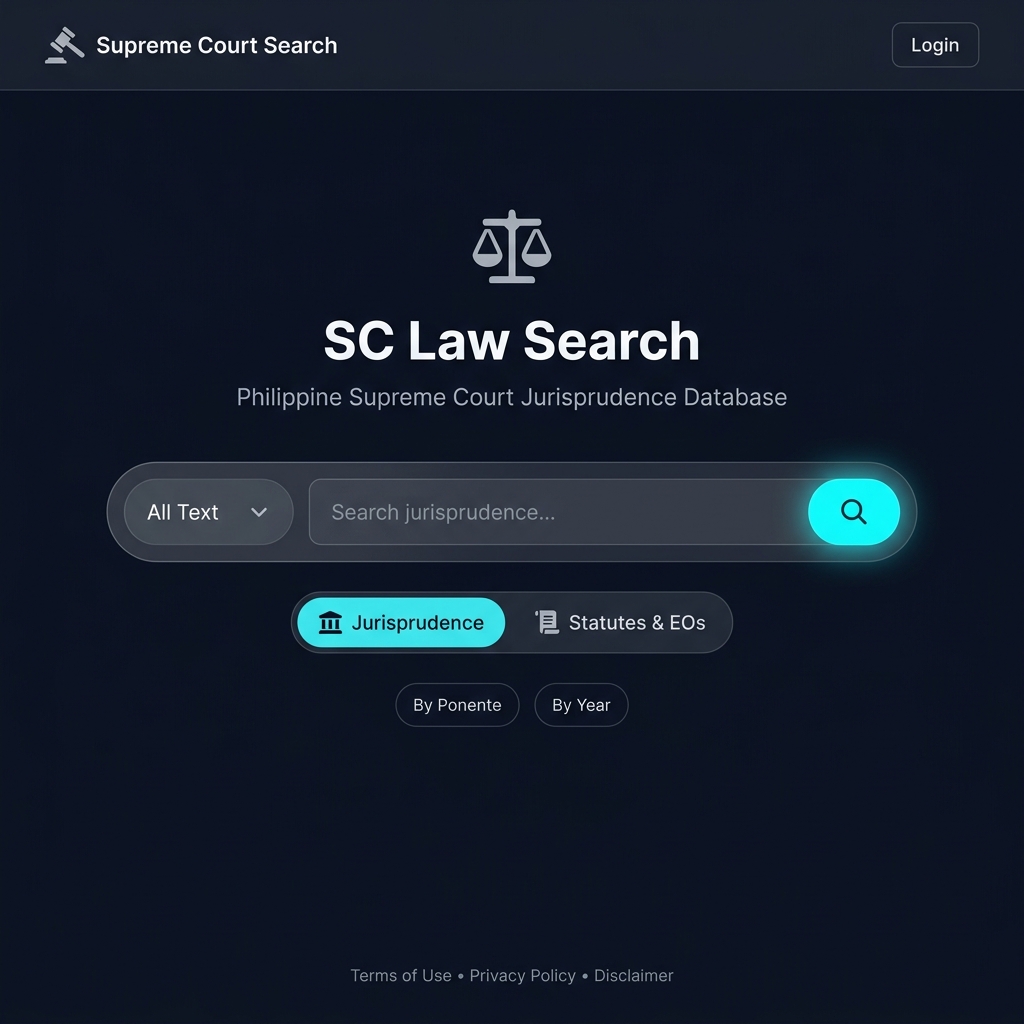
When you first open the app, you will see the main search screen. Simply type any keywords into the search bar and press Search or hit Enter.
- All Text — Searches inside the full text of every decision. Best for topic-based research (e.g., "illegal dismissal", "double jeopardy").
- G.R. Number — Jump directly to a case if you already know the GR number (e.g.,
G.R. No. 12345). - Case Title — Search by party names (e.g., "People vs. Dela Cruz").
- Exact Phrase — Forces the search engine to find the exact wording you type, in sequence.
Using Filters
Once results load, the workspace expands into a three-column view. The left sidebar contains all your filter tools:
- Filter by Year — Type any year (e.g.,
2024) to narrow results to decisions promulgated in that year only. - Filter by Ponente — Type the name of a Justice (e.g.,
Hernando) to show only decisions written by that ponente. - Sort Controls — In the results column, use the sort buttons to reorder results by 🔥 Relevance, 📅 Newest, ⏳ Oldest, or 🔤 Title A-Z.
Reading a Decision
Click any case card in the results column to load its full text in the right-side Reader pane. The document will load instantly with your search keywords highlighted in yellow.
The Reader toolbar contains the following tools:
- ↩️ Back to Search — Instantly returns to your previous search results without having to type your query again.
- 🔍 Find — Opens a floating search bar directly below the toolbar to quickly locate specific words inside the current decision without losing your place.
- 📑 Syllabus — Toggle between the syllabus (headnotes) and the full decision text.
- ⭐ Bookmark — Save this case. You will be prompted to choose a specific Research Folder or save it as Uncategorized.
- 🎧 Listen — Activate Podcast Mode — the app will read the decision aloud using text-to-speech.
- 📋 Citation — Copy the properly formatted legal citation to your clipboard instantly.
- 🔗 Share Link — Generate a shareable deep-link URL. Anyone who pastes this link in their browser will bypass the search screen and open this exact case instantly.
- 🖥️ Fullscreen — Expand the reader to fullscreen for distraction-free reading.
Advanced Search Syntax
Click ⓘ Search Tips in the sidebar to open the full guide. The search engine supports standard FTS5 operators:
- Exact Phrase: Wrap words in quotes —
"due process of law" - OR Search: Find either term —
murder OR homicide - NOT (Exclude): Exclude a term —
dismissal NOT reinstatement - Wildcard: Match partial words —
acquit*matches "acquit", "acquittal", "acquitted" - Proximity (NEAR): Words within N words of each other —
dismissal NEAR/5 employee - Column Search: Search only in the title —
title:Marcos
Searching Statutes & Executive Orders
By default, the search scans Jurisprudence (Supreme Court decisions). To switch to the Statutes database, click the 📜 Statutes & EOs toggle — either on the landing page or the sidebar toggle.
The Statutes database contains:
- Republic Acts (RA) — All enacted Philippine Republic Acts
- Presidential Decrees (PD) — Decrees issued during martial law
- Batas Pambansa (BP) — Laws passed by the Batasang Pambansa
- Executive Orders (EO) — Presidential Executive Orders
Bookmarks & Research Folders
You can meticulously organize your legal research using the new Folder system:
- Creating Folders: Click the + button next to "Research Folders" in the left sidebar to create a new folder (e.g., "Labor Law Cases", "Clients – Santos").
- Saving Cases: While reading a case, click ⭐ Bookmark in the toolbar. A dropdown will appear allowing you to select which Research Folder to save the case into.
- Viewing Folders: Click on any folder name in the sidebar. The results pane will instantly show only the cases saved in that specific folder.
- Managing Bookmarks: Each saved case has a 🗑️ Remove button to delete it individually, or you can use the "Clear All" button at the top of the folder to empty it.
- Uncategorized: Cases saved without selecting a folder will appear in the ⭐ Uncategorized Bookmarks section.
- Notepad Snippets: When you highlight text in a decision and save it to your Notepad, you can also assign that text clipping to a specific folder!
Exporting Documents
While a case is open in the Reader, you can export the full text in two ways:
- 📄 Word — Downloads the full decision as a
.docxMicrosoft Word file. You can set up your law firm's branding (name and logo) via the White-Label Personalization settings, which will appear as a letterhead on the exported document. - 🖨️ Print — Opens the browser print dialog pre-formatted for clean, clean legal document printing.